

Free up iPhone storage in 1 minute: 4 hidden places to check
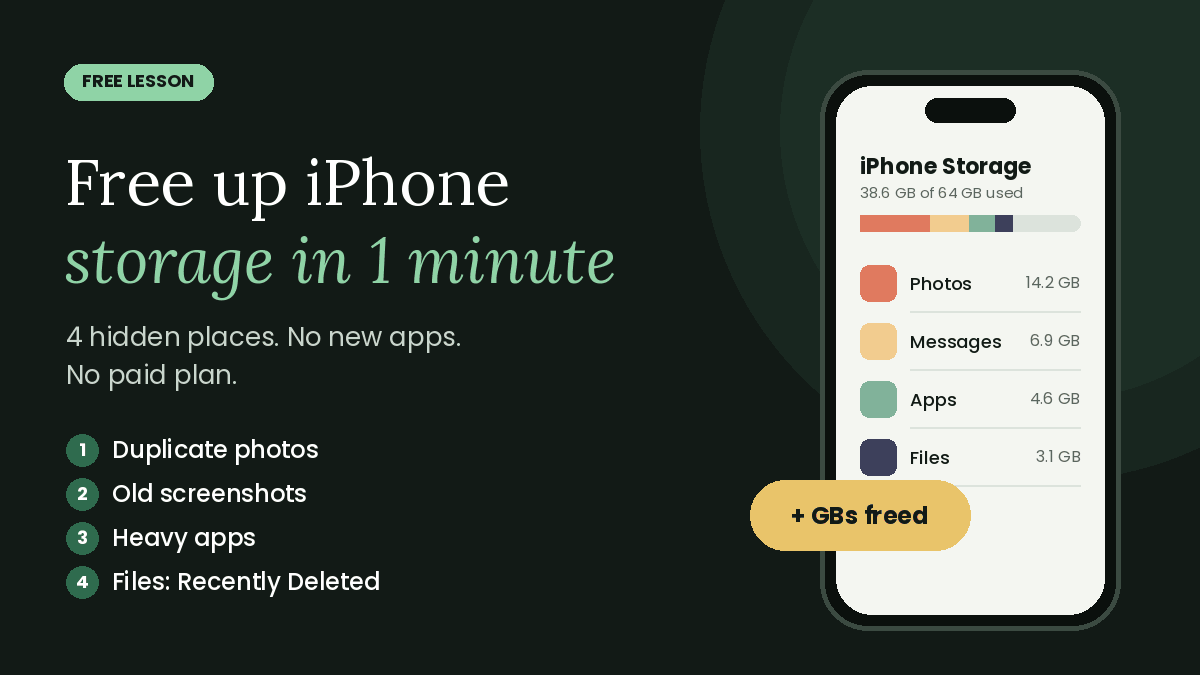
Your iPhone is hiding gigabytes in places you never check. Here are four of them, and you can clear them all in about a minute. No new apps. No paid plan. 📱
Place 1: Duplicate photos
- Open Photos.
- Scroll down to Utilities and tap Duplicates.
- Tap Merge. Your iPhone keeps the best copy of each photo and removes the extras.
Tip: if you don't see Duplicates, your phone is still scanning your library, or it hasn't found any yet. Check again later.
Place 2: Old screenshots
- In Photos, open the Screenshots album (under Media Types).
- Tap Select, pick the ones you don't need, and delete them.
Most of us take screenshots of a code, a map or a message, then never look at them again. They add up fast.
Place 3: Heavy apps
- Open Settings → General → iPhone Storage.
- Look at the list. The biggest apps are at the top.
- Tap the biggest app and check Documents & Data. That's cache and saved files that build up over time.
- If it's huge, delete the app and reinstall it from the App Store. That clears the buildup.
Careful: deleting an app also deletes its data on your phone. Before you do this, make sure the app keeps your stuff in the cloud or in your account. Chat apps in particular can lose messages that aren't backed up.
Place 4: The Files app
- Open Files and tap Browse.
- Tap Recently Deleted.
- Delete everything there. Your storage changes right away.
One more thing: Recently Deleted photos
Photos and screenshots you delete in places 1 and 2 move to Photos → Utilities → Recently Deleted, where they're kept for up to 30 days. They still take up space until then. Open that album, tap Select and delete them to free the space now, but only once you're sure you don't need them.
Your turn
Which place freed the most space for you? Tell us on our contact page. Want more quick phone tips? Check the other free lessons, and we post new ones every week. 🚀